Pinterest Video Downloader Without Watermark: Save the Clean File in Full Quality
You found a video on Pinterest. You want to keep it. You want the file clean. No logo stamped on it. No blurry copy. No app to install. This guide shows you how to save a public Pinterest video without a watermark. It takes less than a minute. It costs nothing. You need no account.
Quick answer: A Pinterest video downloader without watermark gives you the same file Pinterest stores. It adds no logo. It adds no text. You paste the pin link. You pick the file. You save it. The file keeps its sound. It keeps its full quality, up to 4K where the pin holds it. PinsDownload does this free, with no login and no app.
What does without watermark mean?
Two kinds of marks exist. The first kind is a mark a tool adds. Some tools stamp their own logo on your file. They do this to promote themselves. That is the mark you want to avoid. The second kind is a mark the creator put in the video itself. A cook may burn her channel name into the corner of her video. That mark is part of the picture.
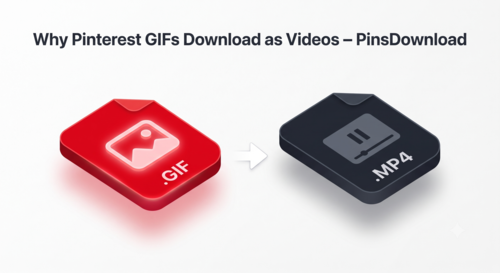
PinsDownload adds nothing. We proved this with a live test. On 7 November 2026 we ran 3 real pins through the tool. A true GIF pin gave back its real GIF file. Two video pins gave back their own MP4 files from the Pinterest video server. The homepage tool gave the same file for the same pin. The tool returns the source file exactly as Pinterest stores it. It never converts the file. It never adds a mark. So when you save a video here, the file you get is the clean source file. Nothing extra rides along with it.
That is the whole idea of without watermark. You get the real file. The tool stays out of the way.
How to download a Pinterest video without watermark
Follow these 5 steps. They work on a phone and on a computer.
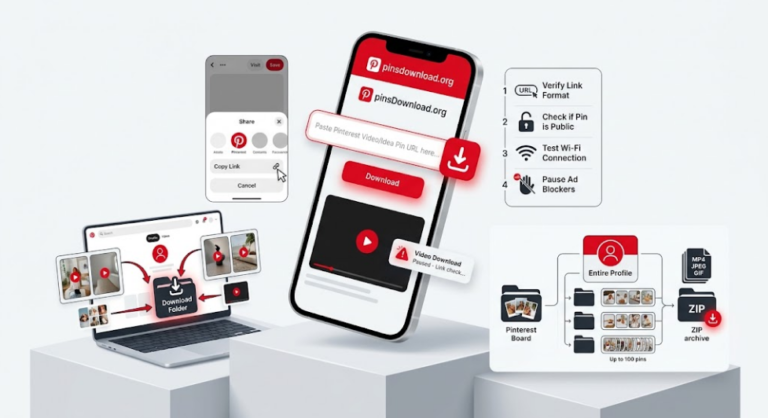
- Open Pinterest and find the video pin you want to keep.
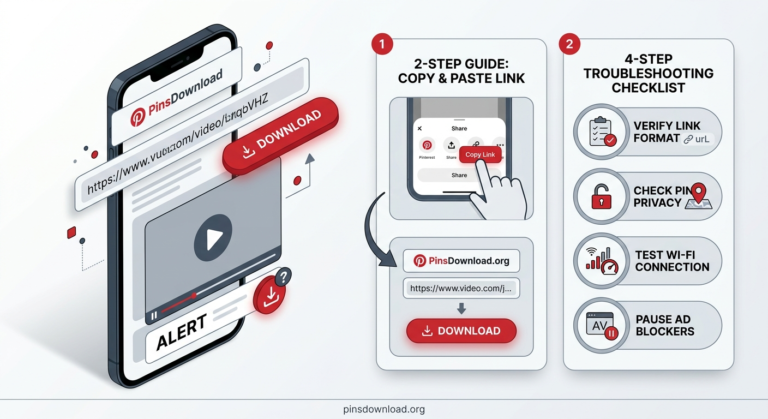
- Tap Share, then tap Copy link. The full link works. The short pin.it link works too.
- Open PinsDownload in your browser. The tool sits on the homepage.
- Paste the link in the box and tap Download. The tool reads the public pin and shows you the file.
- Pick the file and save it to your phone or computer. The video saves as an MP4 with sound. Idea pins save the same way. They come out as MP4 files with sound too.
That is all. No account stands in the way. No app download pops up. No payment screen appears. The whole job takes less than a minute when your net is fine.
One tip helps a lot. Copy the link from the pin itself, not from a board page. The pin link points straight at the video.

What quality will the file have?
The file keeps the quality of the pin. That is the honest answer. If the pin holds 4K, you get 4K. If the pin holds HD, you get HD. The tool saves the source file as it is. It does not shrink the file. It does not blur it. It does not cut the sound out.
This matters because many tools shrink files. They hand you a soft copy or strip the sound. A clean source file keeps every pixel the creator uploaded. So always pick the best file the tool shows you.
One more fact keeps hopes real. If a pin was uploaded in low quality, the file stays low quality. No tool can add detail that was never there. A downloader can only give you what Pinterest stores. It cannot sharpen a soft video into a 4K video. Any tool that claims it can is not telling the truth.
Can you save Pinterest images without a watermark too?
Yes. The same idea works for photos. Pinterest images save as JPG or PNG files. The image tool on this site saves the original file, not the small preview Pinterest shows in the feed. You paste the pin link the same way. You pick the image file. You save it. No mark is added. No login is asked for.
Use the Pinterest image downloader page for photos and the video tool on the homepage for videos. Both tools follow the same rule. You get the source file exactly as stored. If you save a lot of pins, keep the two tools apart in your head. Video pins go to the video tool. Photo pins go to the image tool. Each one gives you the right file type for that pin.
Do you need an app for this?
No. You do not need an app. You do not need an APK file. The web tool runs in the browser on your phone. You do not need the Pinterest app for the save step. The browser is enough. It works in Chrome and Safari and any modern phone browser. It works the same way on a computer. You open the site, paste the link, and save the file.
This is good news for your phone. Apps take space and ask for access to your files. A web tool asks for none of that. If a site tells you that you must install its app to save one video, that is a bad sign.
What this tool cannot do
Every honest tool has limits. Here are the limits of this one.
It cannot save a private pin. If only the owner can see the pin, the tool cannot reach it. It cannot save a deleted pin. If the pin is gone, the file is gone too. It cannot save a pin that needs a login to view. Pinterest keeps those pins behind its own wall. No real downloader can pass that wall.
It cannot remove a mark the creator burned into the video. That mark is part of the picture itself. It sits in the pixels. To take it out, a tool would have to paint over the video or crop it. So the tool leaves it alone. It never adds a mark of its own.
How to spot a tool that adds its own mark
Not every downloader is clean. Here is how to tell a good one from a bad one before you waste time on it.
A good tool shows you the file first. You see the size and the type before you save. A good tool asks for no login. It asks for no password. It asks for no app. A good tool saves the file in one tap. It does not hide the save button behind five ads. A good tool is free for the basic job. It does not charge you to remove its own logo.
A bad tool does the reverse. It forces an app install before it shows you anything. It asks you to sign in with your Pinterest password. Never give your password to a downloader. It stamps its logo on the export and charges you to take it off. It shows a small blurry preview and hides the real file. If you see any of these signs, close the tab. Your video is not worth a bad tool.
You can run the same test on any tool. Save a video. Open the file. Look at the corners. If a logo appears that was not in the pin, the tool added it. If the file is soft where the pin was sharp, the tool shrank it.
Frequently Asked Questions
Does the downloaded video have a watermark?
No. You get the file Pinterest serves. Nothing is added. If the creator burned a name or logo into the video itself, that mark is part of the picture and stays. The tool never adds a mark of its own.
How do I download a Pinterest video without watermark?
Copy the pin link from Pinterest. Paste it into the tool on the PinsDownload homepage. Tap Download. Pick the MP4 file. Save it to your phone or computer. The whole job takes less than a minute.
Can I download Pinterest videos in 4K without watermark?
Yes, where the pin holds 4K. The tool saves the source file at its own quality. It never shrinks the file. If the pin was uploaded in HD, you get HD. The file keeps its sound too.
Do I need an app to download Pinterest videos without watermark?
No. The web tool works in your phone browser. No install is needed. No APK is needed. It works the same way on iPhone, Android, Windows and Mac.
Can I download Pinterest images without watermark too?
Yes. The image tool saves the original photo file, JPG or PNG as stored. No mark is added. Use the Pinterest image downloader page for photo pins.
Is it free to download Pinterest videos without watermark?
Yes. The tool is free. No account is needed. No fee is charged. You paste the link and save the file.
The short version. A video without a watermark is just the real file. You want the file Pinterest stores, with nothing added and nothing taken away. Copy the pin link. Paste it in the tool. Save the MP4. That is the whole job.
Try it now on the PinsDownload homepage. If the pin is a photo, use the Pinterest image downloader page. If you want the sharpest video a pin can give, read our guide on how to download Pinterest videos in 4K. It shows you how to pick the best file every time.